Reading an article
What every control on an article does — including having it read aloud to you, and making the text comfortable for your eyes.
The reading view
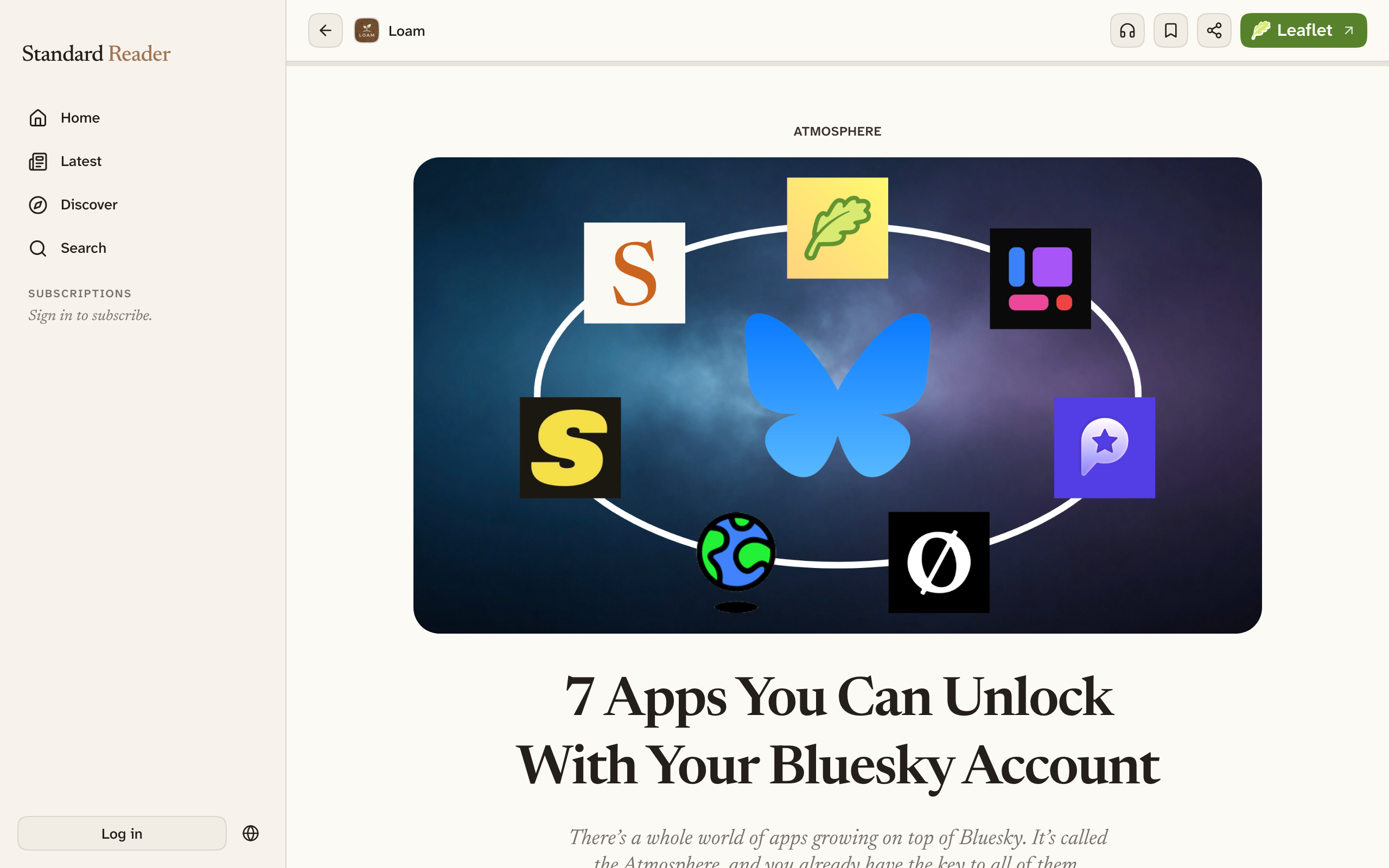
Select any headline to open it. Articles are laid out as a single column at a comfortable width, with the publication's own colors and typography where it has them.
A slim bar stays at the top as you scroll. It holds the back arrow, who wrote the piece, and the actions below; the thin line beneath it fills up as you move through the article, so you always know how much is left.
- Subscribe — get this publication's new writing in your feeds.
- Save for later — put the article in your Saved queue.
- Listen — have the article read aloud.
- Share — copy a link, or post the article to Bluesky with a preview card.
At the end of the article you can Recommend it, see more from the same publication, and find related reading from elsewhere on the network.
Listening to an article
Select Listen in the top bar and the article is read aloud. The first time takes a few seconds to warm up; after that it starts straight away.
A player appears just above the navigation and stays there while you move around the app, so you can keep listening while you browse. It has play and pause, a jump back fifteen seconds, a speed control, a bar you can drag to move through the article, and a close button. The word being spoken is highlighted in the text and kept on screen; if you scroll away yourself, that stops until you select Follow along.
To start from a particular paragraph instead of the beginning, select the text and choose Read from here.
Making the text comfortable
Text size, line width, and the font used for article bodies are all adjustable — serif, sans-serif, or any font from the Google Fonts catalog. The controls are in your account menu and on the settings page, and they apply to every article from then on.
These are separate from the app-wide appearance settings, which is deliberate: you can have compact, small interface text and large, wide-set article text at the same time. Making it yours covers the rest.
Images and links
Select any image in an article to open it full size. If the article has a gallery, arrows move between its images, and any description the author wrote is shown alongside. Press Escape or select outside the image to close it.
Links inside an article go where the author pointed them. When a link leads to another article that Standard Reader knows about, it opens here rather than sending you out to the web.
Read and unread
Opening an article marks it read, which is how Home and Latest know what is still waiting for you. You can flip it back with Mark as unread, and clear a whole publication at once with Mark all as read from its menu.
If you would rather the app did not keep a history of what you have opened, you can turn that off in settings. Unread counts stop being meaningful when you do — that is the trade.
Sharing an article
Share copies a link, or posts the article to Bluesky with a proper preview card. On a phone it can hand off to whatever you normally share with.
Links you share work for anyone, signed in or not — they open the article in the reader, and nobody is asked to make an account to read it.
Sharing a passage
Sharing a whole article is a blunt instrument when what struck you was one paragraph. Select any text in an article and a small toolbar appears over the selection.
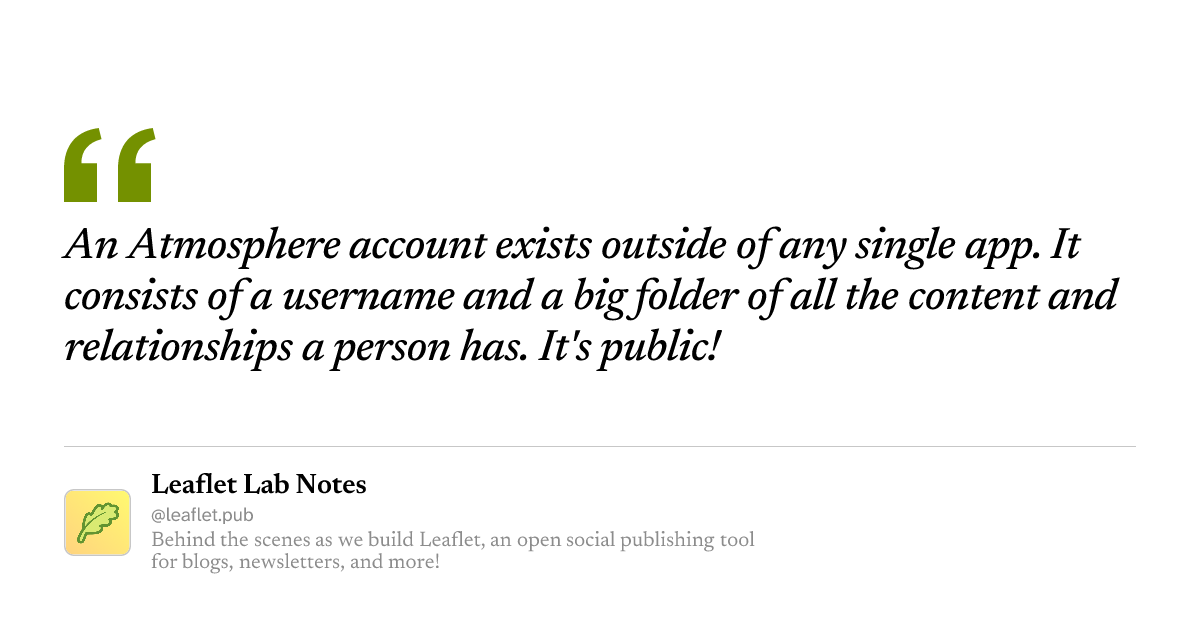
Share there gives you a link to that passage. Whoever opens it lands on the article with your words highlighted, exactly where you left off — so the point you were making is the first thing they see, not something they have to hunt for.
The same toolbar can start the narration from that paragraph with Read from here, and — if you use them — save the passage to Margin or Semble as an annotation.
Paste that link anywhere that unfurls a preview — Bluesky, a chat, a document — and the passage itself is the preview:
Comments and related reading
Standard Reader has no comment box of its own. Instead, below each article it gathers the conversation that already happened elsewhere: Bluesky posts linking to the piece, replies to the author's own announcement, and notes people made on it in annotation tools. Select any of them to reply where the conversation actually is.
Under that, Cited in lists other articles that link to this one, and Related reading suggests pieces from across the network on the same subjects — usually from publications you have not met yet.
Opening the original site instead
Some people would rather read on the publication's own site, with its own design. Turn on the open-on-the-original-site setting in your account menu and every article link opens there in a new tab instead of in the reader. Articles that have no site of their own still open here.
For a single article, the top bar's menu has Open on publication without changing the setting.